How to Scan Magic Cards
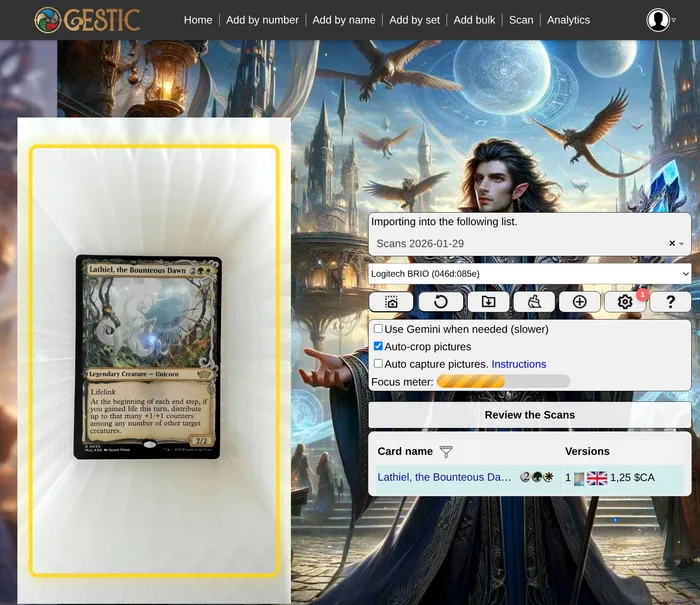
Gestic scans Magic cards with the camera you already have — a phone, a webcam or a sheet-fed document scanner — in the browser, with no app to install. Scanning is free and uncapped. This page is the same guide the scanner shows on your first scan, so you can read it before you start.
Card recognition works best when four things are right. Each one has real examples below, taken from actual scans people sent us.
Good pictures
These three are what the scanner wants: the card fills the frame, sits square, is evenly lit, and its name, set symbol and collector number are all readable. The sections after this one show what goes wrong.


Centering
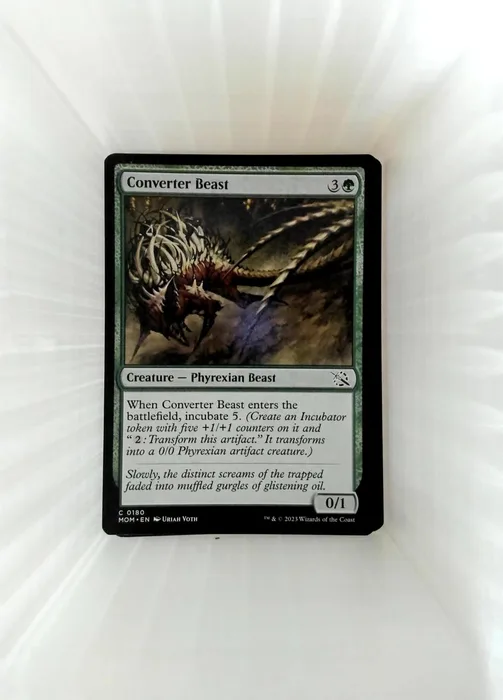
The card should fill as much of the highlighted frame as possible while fitting completely inside it, and should sit as vertical as you can manage. The AI will try to detect and recenter the card, but poor positioning costs quality and accuracy. Check the picture is not upside down.


Focus
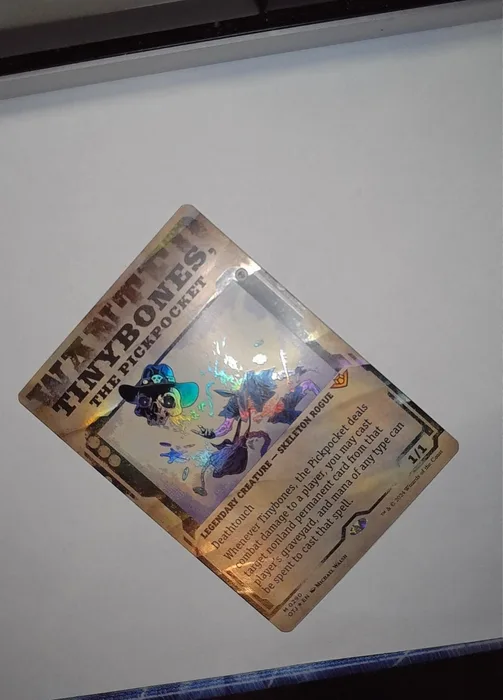
Sharper pictures read more accurately. The models locate the key regions — the card name at the top, the collector number at the bottom — and the OCR turns them into text. A blurry picture fails that step. If your camera is fixed in place, such as in a slinger box, it is good practice to turn auto-focus off and set the focus by hand once.



Lighting
Lighting is the one that matters most, because it also buys you focus. Ring lights work well as long as the ring itself is not reflected on the card. A sheet of paper between the lamp and the card diffuses the light and kills most glare.


Visibility
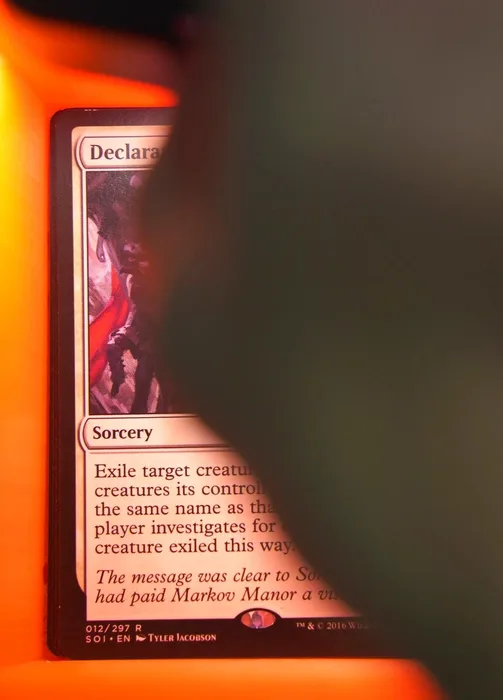
Recognition leans on three things: the set (its symbol or the footer code), the card name, and the collector number. All three should be clearly visible. It can still work with one missing — as long as no other card shares that number or name — but it is much more likely to fail. Keep fingers, sleeves and shadows off them.


A setup that works
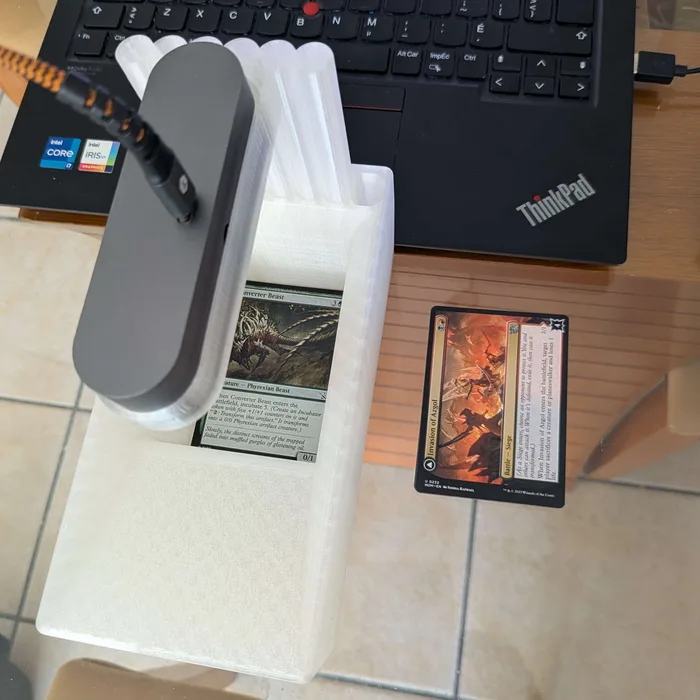
Here is one you might copy. It is a SlingerBox base with a custom 3D-printed webcam holder — get in touch if you would like one of the holders. The room is bright enough that no extra lamp was needed, and the webcam's auto-focus is switched off and set by hand.